
Are Vinyl Stickers Safe for Laptops?
Mitchell AdelmanTable of Contents
- Are Vinyl Stickers Safe for Laptops? The Short Answer
- Understanding Laptop Surfaces and Sticker Compatibility
- Best Stickers for Laptops: What to Look For
- Where to Place Stickers and Where to Avoid
- Can Stickers Cause a Laptop to Overheat?
- Discoloration and Long-Term Wear
- How to Remove Vinyl Stickers from a Laptop
- How to Remove Sticker Residue from a Laptop
- Frequently Asked Questions
Last Updated: October 9, 2026
Are Vinyl Stickers Safe for Laptops? The Short Answer
Yes, vinyl stickers are generally safe for laptops when you choose the right type and apply them carefully, but understanding whether are vinyl stickers safe for laptops really depends on your specific device and how you apply them.
The real question isn't whether vinyl stickers are safe, it's whether they're safe for your specific laptop. An aluminum MacBook, a plastic gaming laptop, and a painted business machine all behave differently. At Cerulean Rooster, we create vinyl stickers designed to stick without damaging surfaces.

Here's what you need to know before you stick anything on your device.
Understanding Laptop Surfaces and Sticker Compatibility
Different laptop materials react differently to adhesive. Your laptop's finish determines whether a vinyl sticker will adhere safely or leave permanent marks.

Aluminum and Painted Finishes
Aluminum laptops (like most MacBooks) have a smooth, sealed surface that vinyl stickers stick to well. The adhesive grabs the finish without sinking in or damaging the material underneath.
Painted finishes are trickier. If your laptop has a painted surface, the adhesive can sometimes grip the paint itself rather than the material beneath. When you peel off the sticker, you risk lifting paint with it.
Check your laptop's finish by running your finger across it. Smooth and cool to the touch usually means sealed metal or plastic. Slightly textured or matte usually means paint or a protective coating.
Plastic Casings and Protective Layers
Plastic casings are generally sticker-friendly. Most gaming laptops and budget models use plastic, and vinyl stickers stick to plastic without issue.
The concern with plastic is heat. Some plastic becomes softer when warm, which can affect adhesive grip. But this rarely causes problems unless your laptop runs extremely hot in a confined space.
Many laptops have a protective layer, a thin coating meant to resist scratches and fingerprints. Vinyl stickers work fine on these layers. The adhesive bonds to the coating, not the material beneath.
Best Stickers for Laptops: What to Look For
Most guides tell you to buy "removable vinyl" and stop there. That's not enough to protect your laptop. Before a sticker touches your lid, run it through this checklist. It takes two minutes and prevents the two most common problems: lifted paint and stubborn residue.
The Pre-Application Checklist
1. Adhesive type. Look for labels that say removable, repositionable, or low-tack.
2. Removability claim. A sticker marketed as removable should say so on the packaging or product page. Be skeptical of vague phrases like "easy peel" with no adhesive spec.
3. Surface compatibility. Match the sticker to your finish. Smooth, sealed aluminum and hard plastic are the most forgiving.
4. Backing quality. Peel a corner of the backing paper. It should release cleanly without tearing or leaving sticky patches.
5. Thickness and flexibility. Thin, flexible vinyl conforms to curves and sits flush.
Test in an Inconspicuous Spot First
Before committing to the lid, apply the sticker to a hidden area, the underside near a corner, or a spot inside the battery bay door if your model has one. Leave it for 48 hours, then peel it off slowly. Check for three things: lifted coating, color change, and leftover adhesive. If any appear, don't use that sticker on the visible surfaces.
What We Make and Why It Matters
At Cerulean Rooster, we're two deaf brothers who build every sticker as a piece of expressive art. That shapes how we choose materials. Our Cerulean Rooster Die-Cut Vinyl Sticker uses vinyl thin enough to sit flush on a laptop lid while still holding its shape, and our It's Axe Time Vinyl Sticker is cut for clean edges that won't curl. Because we design each piece by hand, we care about how it looks on day one and how it comes off on day four hundred.
Skins vs. Individual Stickers
A full laptop skin covers the entire lid in one piece. Individual stickers cover part of it. Skins give you a uniform look and can hide existing scuffs, but they're harder to remove cleanly because there's more adhesive surface area and more edges to lift. Individual stickers are easier to swap and less risky on painted finishes. If you change your mind often, go with individual stickers. If you want one look for years, a skin is fine, just test the adhesive first.
Where to Place Stickers and Where to Avoid
Placement is everything. The wrong spot can trap heat, block airflow, or put stress on moving parts.
Safe Placement Zones
The laptop lid is the safest place. It's flat, doesn't move, and doesn't generate heat. Most people decorate the lid, and it works great.
The back of the screen (the part you see when the laptop is closed) is also safe. It's away from heat vents and moving parts.
The bottom of the laptop is fine too, though fewer people put stickers there. Just avoid vent areas.
Areas to Skip
Never cover heat vents. Vents are usually on the sides or back of the laptop.
Avoid the keyboard deck (the area around the keyboard). This area gets heavy use, and sticker edges can catch on your hands.
Don't stick anything on the screen itself. The screen is delicate, and adhesive can damage it.
Skip the hinges and any moving parts. Stickers on hinges crack and peel as the laptop opens and closes.
Avoid areas near ports and the power button. You don't want stickers interfering with cables or getting in the way.
Can Stickers Cause a Laptop to Overheat?
A single sticker on the lid won't cause overheating. But multiple stickers covering vents absolutely can.
Laptops cool themselves by pulling air through vents and pushing hot air out. If you block these vents, air can't flow, and heat builds up inside.
Most people put stickers on the lid, which is away from vents, so overheating isn't a real concern.
Check your laptop's manual or search online for your model's vent locations. If you know where they are, you can avoid them.
Discoloration and Long-Term Wear
Here's what most guides skip: the mark left behind usually isn't damage to the sticker area. It's a difference between the area that was covered and the area that wasn't.
Why Covered and Uncovered Areas Age Differently
Your laptop's finish changes over time. Sunlight, heat, skin oils, and everyday handling all slowly alter the surface. A sticker blocks those inputs on the covered area while the rest of the lid keeps aging. After a year or two, the covered spot can look lighter, darker, or slightly different in sheen than the surrounding finish. That's the outline people notice, not adhesive burn.
On painted and soft-touch surfaces, the effect is stronger because the coating itself is more reactive. On sealed aluminum and hard plastic, it's usually subtler.
The Adhesive Side of the Equation
Adhesives can also leave a residue shadow. Some leave an oily film that attracts dust and darkens over time. Others leave a faint chemical trace that reacts with the coating. Both are usually removable with the right technique, but the longer the sticker sits, the more set the mark becomes.
How to Reduce Visible Outlines
- Rotate or remove stickers every few months. Letting the surface breathe slows the aging gap. Even a week uncovered helps.
- Keep the laptop out of direct sun. UV exposure is the biggest driver of uneven aging. A sleeve or a closed lid in a shaded spot makes a difference.
- Clean the lid before applying. Dust and oil trapped under a sticker create a concentrated mark.
- Avoid stacking stickers. Layered stickers trap more adhesive and heat against the finish.
- If you notice an outline starting, remove the sticker early. The sooner you peel, the more the mark fades.
What Fades and What Doesn't
A light outline from uneven aging usually fades over weeks to months once the sticker is off and the surface is exposed evenly. A residue shadow from adhesive often needs a gentle clean with rubbing alcohol on a soft cloth. A lifted coating or a true chemical stain is the one that may not fully reverse, which is why the pre-application test matters so much.
Long-Term Wear Beyond Color
Stickers also affect how the lid wears. Edges catch on bags and sleeves and can lift, taking a bit of coating with them. Grit trapped under a lifted edge acts like sandpaper over time. Keeping edges pressed down and replacing stickers that start to curl protects the finish underneath. If you want a design that holds up to daily handling, our vinyl stickers are made to sit flat and stay flat, because we'd rather you enjoy the art than worry about the lid.
How to Remove Vinyl Stickers from a Laptop
Removing a sticker the wrong way causes damage. Do it right, and your laptop stays pristine.
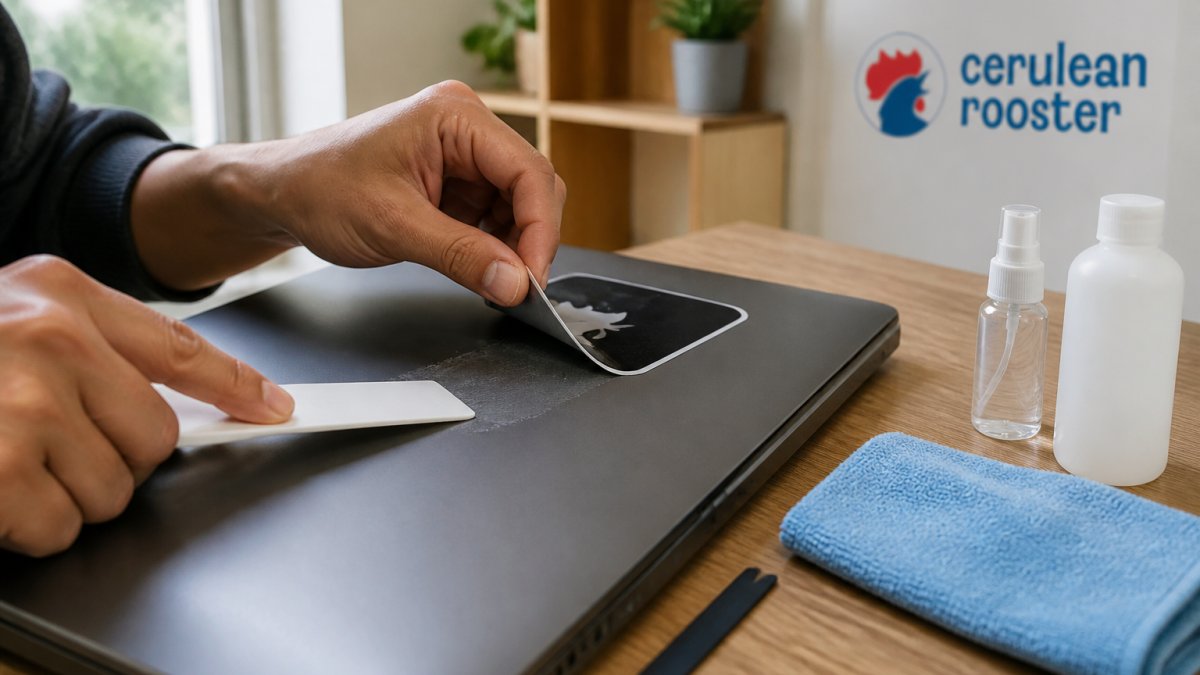
Here's the process:
Start by lifting one corner of the sticker with your fingernail or a plastic scraper. Don't yank it.
Peel slowly at a shallow angle. The shallower the angle, the less stress you put on the adhesive bond.
If the sticker resists, stop. Don't force it. Apply heat with a hair dryer on low setting for 30 seconds.
Keep peeling slowly until the sticker comes free.
Work your way around the entire sticker. Don't focus on one corner and pull until it's off.
How to Remove Sticker Residue from a Laptop
Sometimes the sticker comes off but the adhesive stays behind. This is frustrating, but it's fixable.
Residue removal steps:
First, try rubbing it off with your finger.
If rubbing doesn't work, use a small amount of rubbing alcohol on a soft cloth.
Test the alcohol on a hidden part of your laptop first.
Avoid acetone or harsh solvents. These can damage paint and coating.
Let the alcohol dry completely before closing your laptop or using it. Moisture and electronics don't mix.
If residue persists, repeat the process. Stubborn adhesive sometimes needs multiple applications.
Frequently Asked Questions
Can vinyl stickers damage a laptop?
Vinyl stickers won't damage your laptop if you use removable adhesive and avoid covering vents or heat-sensitive areas. The key is choosing computer-safe vinyl, quality matters. High-quality removable vinyl stickers are designed to adhere without leaving permanent marks or discoloration on your laptop surface. Avoid cheap stickers with strong permanent adhesive, and don't place stickers over ventilation areas where heat dissipation happens.
Do vinyl stickers leave residue on laptops?
Removable vinyl stickers leave minimal to no residue, especially when applied to clean surfaces and removed carefully. Permanent adhesive stickers are more likely to leave sticky residue. If residue does appear, you can remove it safely using rubbing alcohol or adhesive remover on a soft cloth. The type of vinyl and adhesive you choose makes all the difference, that's why assessing sticker quality before applying it matters so much.
Are vinyl stickers safe to put on a MacBook?
Yes, vinyl stickers are safe for MacBooks when you use removable adhesive and avoid covering vents. MacBooks have aluminum unibody designs that work well with quality vinyl stickers. The main precaution is placement: keep stickers away from the hinge area, keyboard deck, and any ventilation openings. Removable vinyl won't cause oxidation marks or discoloration on aluminum if you remove it carefully within a reasonable timeframe.
How long can you leave vinyl stickers on a laptop?
Removable vinyl stickers can stay on your laptop for months or years without damage, though long-term exposure to heat, sunlight, and moisture may cause slight color fading or adhesive weakening. Check your sticker occasionally for peeling edges, especially around heat vents. If you're keeping a sticker long-term, high-quality vinyl holds up better than budget alternatives. For work laptops or devices you plan to resell, consider removing stickers every 6-12 months to prevent any permanent marks.
Vinyl stickers are a safe way to personalize your laptop when you choose quality stickers and place them thoughtfully. The key is understanding your laptop's surface, avoiding vents, and removing stickers carefully when you're ready for a change. At Cerulean Rooster, we craft stickers that stick right and peel clean, because we believe your device should reflect your personality without paying the price. Explore our collection of handmade vinyl stickers and find the design that speaks to you.